Clients
Clients represent the people or organizations you do work for. Associating projects and time entries with clients helps you track where your time goes and generate accurate reports and invoices.
Client List
Section titled “Client List”The Clients page displays all of your clients in a searchable list. Use the search bar to filter clients by name.
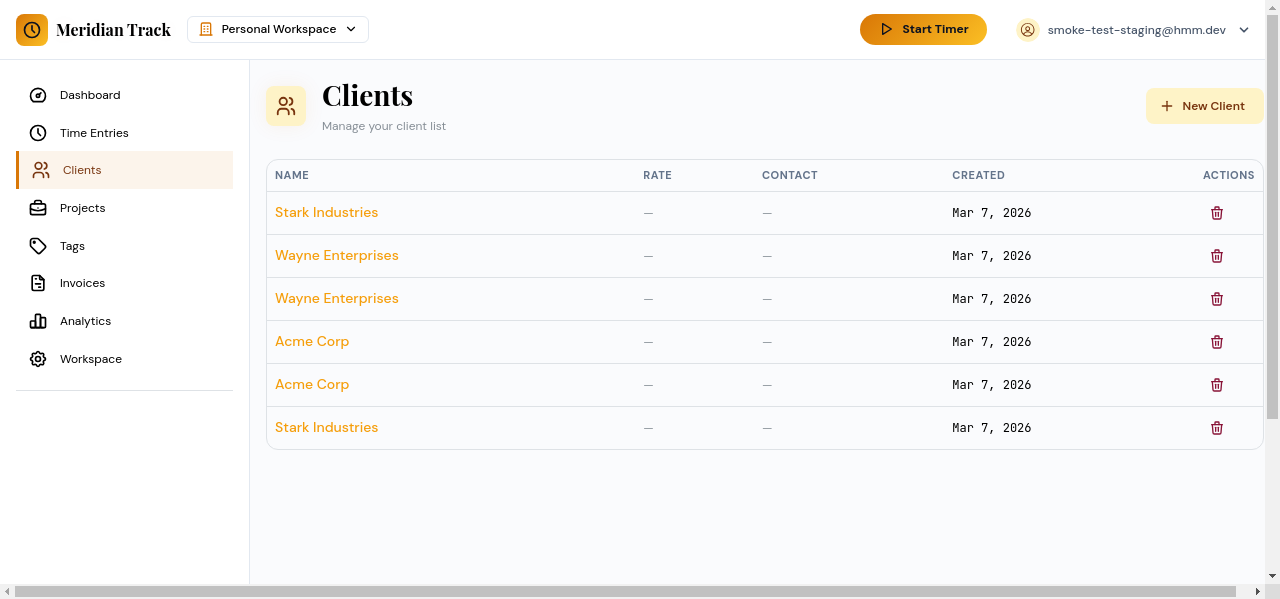
Each row in the list shows the client name. Click a row to navigate to that client’s detail page.
Creating a Client
Section titled “Creating a Client”Click the “Add Client” button to open the create modal.
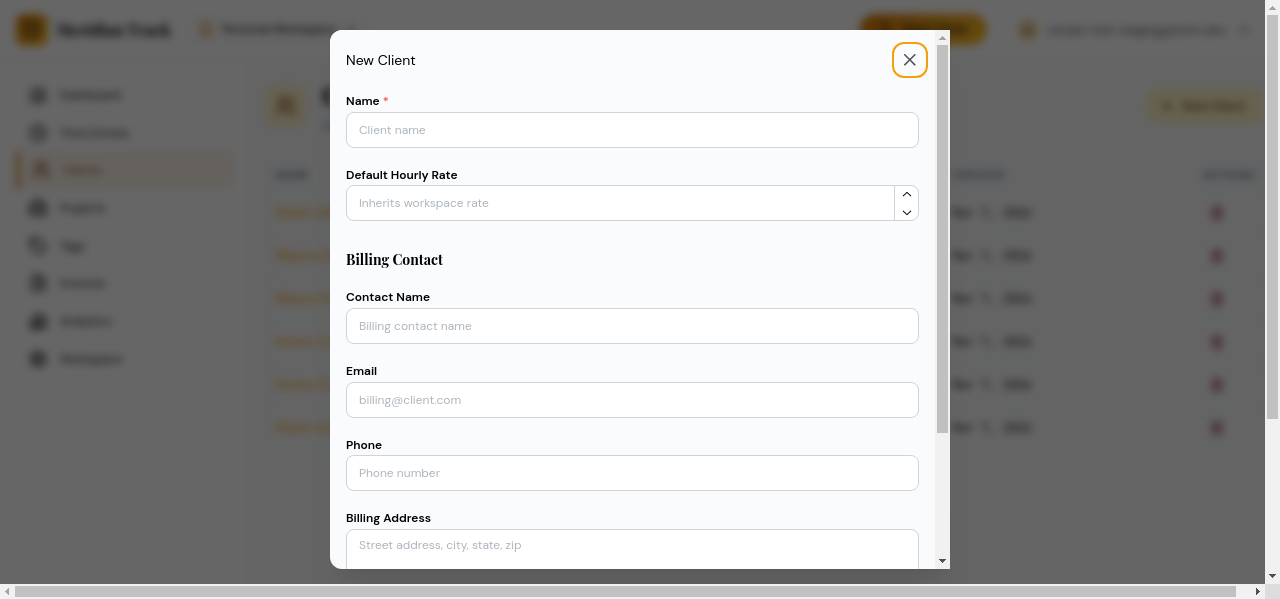
Enter the client name and click “Save.” The client is immediately available for selection when creating projects and time entries.
Client Detail Page
Section titled “Client Detail Page”Click a client in the list to open their detail page. From here you can:
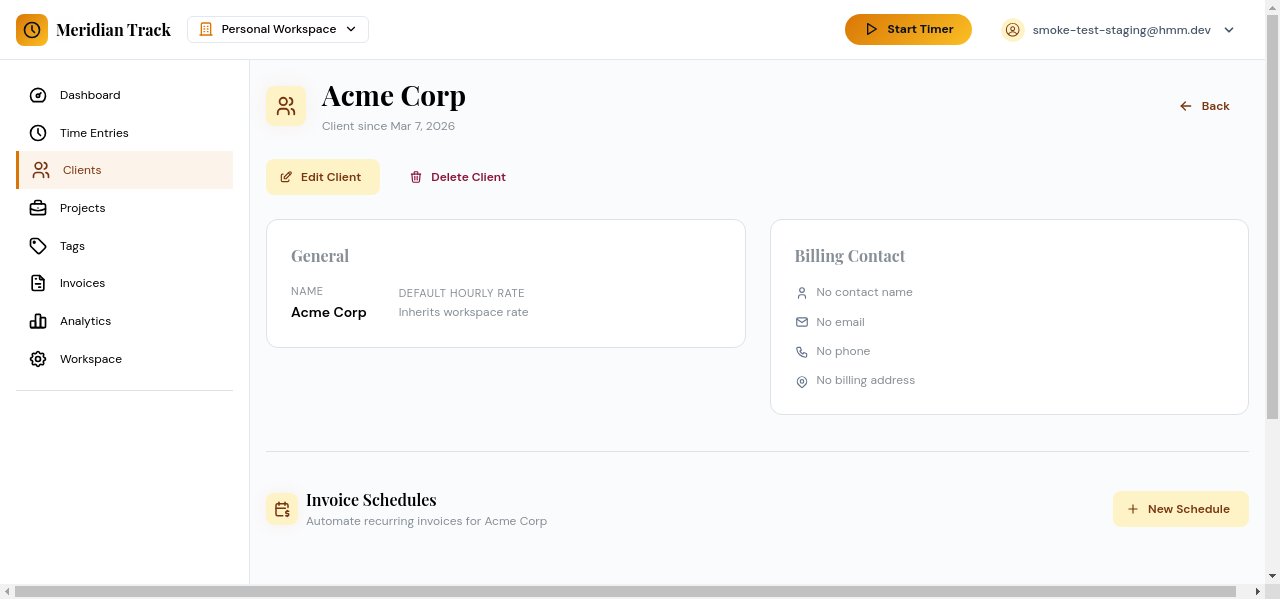
Edit Name
Section titled “Edit Name”Click “Edit Client” to modify the client name, then click “Save Changes” to confirm.
Associated Projects
Section titled “Associated Projects”The detail page lists all projects linked to this client, giving you a quick overview of the work organized under them.
Invoice Schedules
Section titled “Invoice Schedules”If invoicing is configured for the client, any associated invoice schedules are displayed here. This shows the billing frequency and status of upcoming invoices.
Deleting a Client
Section titled “Deleting a Client”On the Clients list page, click the delete icon next to a client row. A confirmation dialog will appear before the client is permanently removed.
Deleting a client does not delete associated projects or time entries. Those records remain intact but will no longer be linked to a client.