Projects & Tasks
Projects let you organize your time entries into logical groups of work. Each project can optionally be linked to a client and broken down into individual tasks.
Project List
Section titled “Project List”The Projects page displays all of your projects. Each row shows the project name, associated client (if any), and a color indicator.
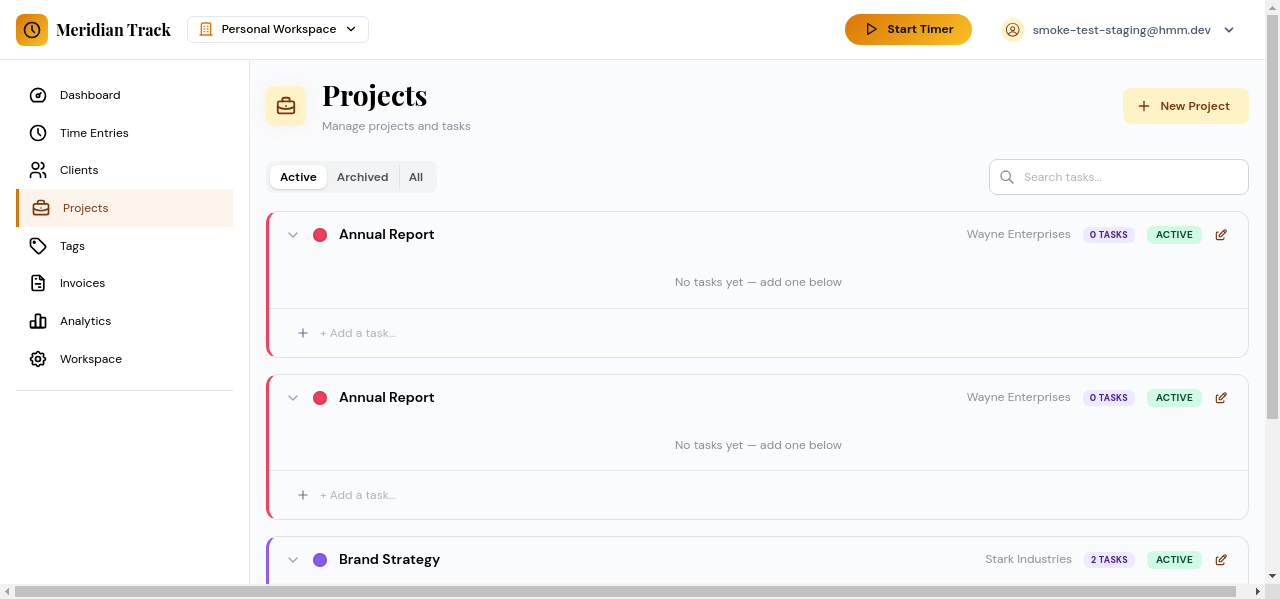
Use the list to quickly scan your active projects or click a project to view and edit its details.
Creating a Project
Section titled “Creating a Project”Click the “Add Project” button to open the create modal.
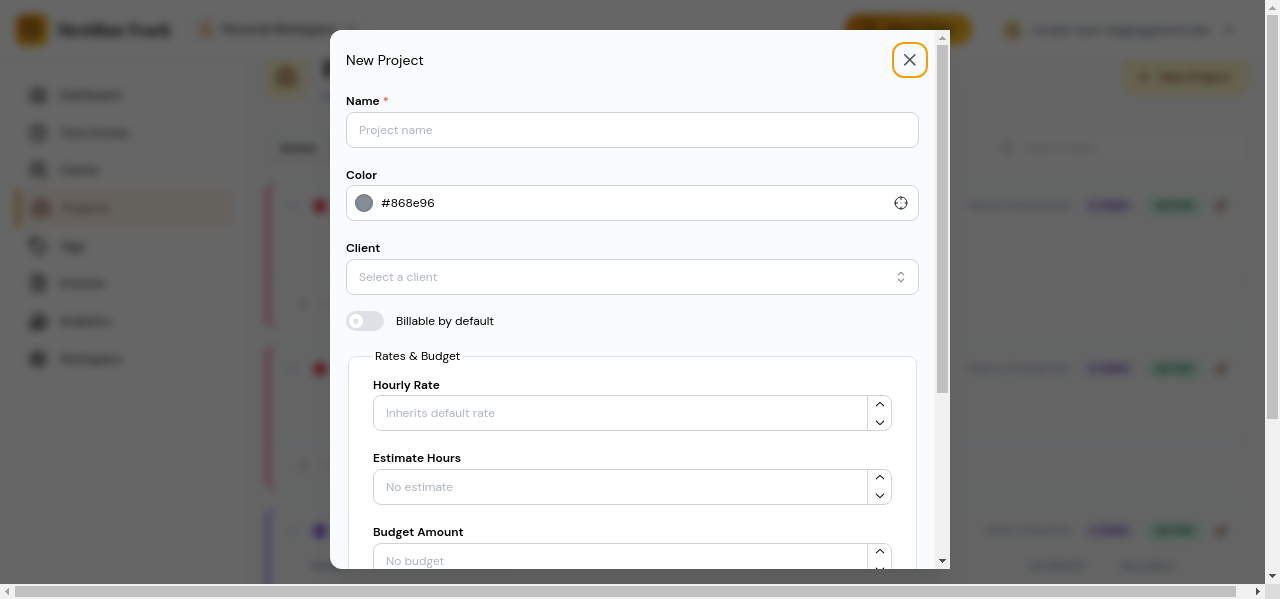
Fill in the following fields:
- Name — A descriptive name for the project.
- Client — Optionally associate the project with an existing client.
- Budget — Set a time budget in hours. Progress against this budget is shown on the Dashboard.
- Hourly rate — The billing rate used to calculate earnings for time tracked to this project.
- Color — Choose a color to visually distinguish this project in lists and charts.
Click “Save” to create the project.
Task Management
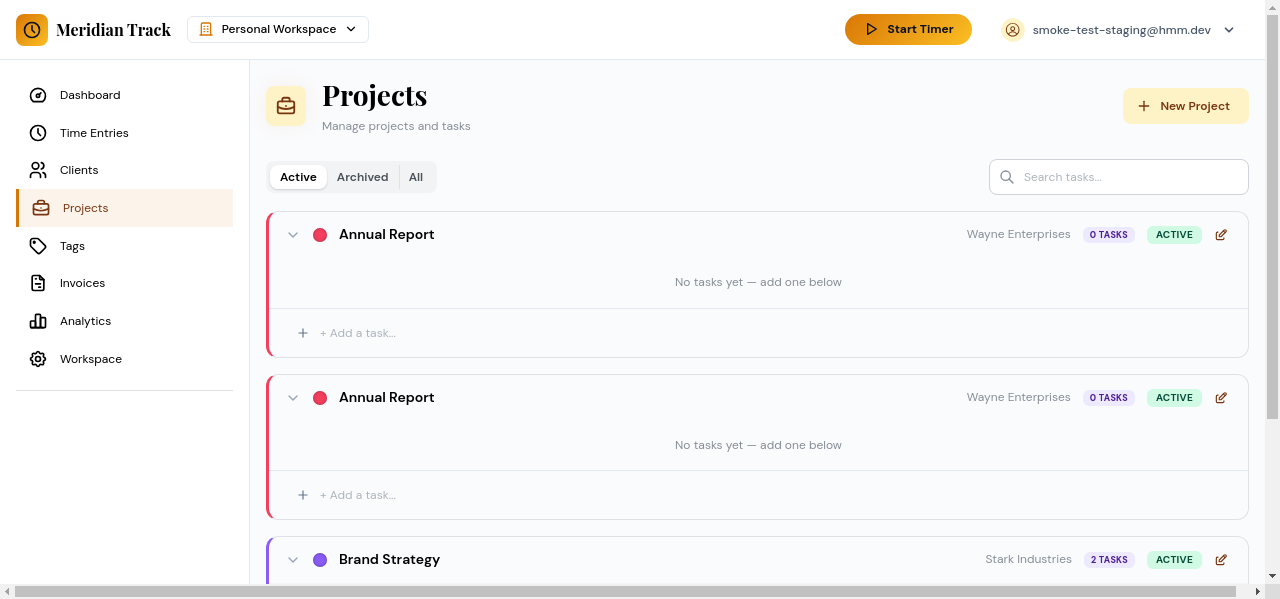
Section titled “Task Management”Tasks break a project into smaller, trackable units of work. Open a project to access its task list.
Adding Tasks
Section titled “Adding Tasks”Add a task by entering a name and configuring its properties:
- Name — A short description of the task.
- Estimate — An optional time estimate in hours, useful for tracking progress against planned effort.
- Billable — Toggle whether time tracked to this task counts as billable.
- Sort order — Control the display order of tasks within the project. Drag to reorder, or set a numeric position.
Editing and Removing Tasks
Section titled “Editing and Removing Tasks”Click a task to edit its name, estimate, billable flag, or sort order. Tasks can also be removed from the project when they are no longer needed.
Using Tasks in Time Entries
Section titled “Using Tasks in Time Entries”When creating or editing a time entry and selecting a project that has tasks, you can choose a specific task to associate with that entry. This gives you more granular tracking and reporting within a project.