Quick Start
This guide walks you through tracking your first time entry using the built-in timer.
Start Tracking
Section titled “Start Tracking”- Log in to Meridian Track. You will land on the Dashboard.
- Locate the timer button in the top area of the sidebar. It appears in an idle state when no timer is running.
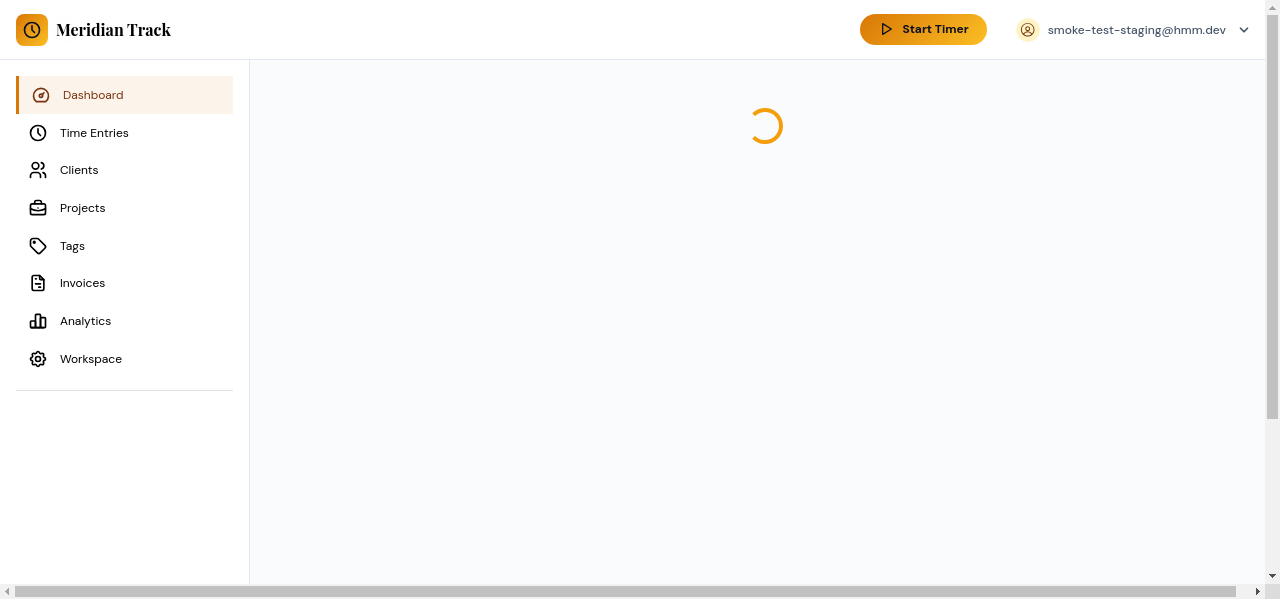
- Click the timer button to start tracking time. The timer will begin counting and the button will switch to an active state.
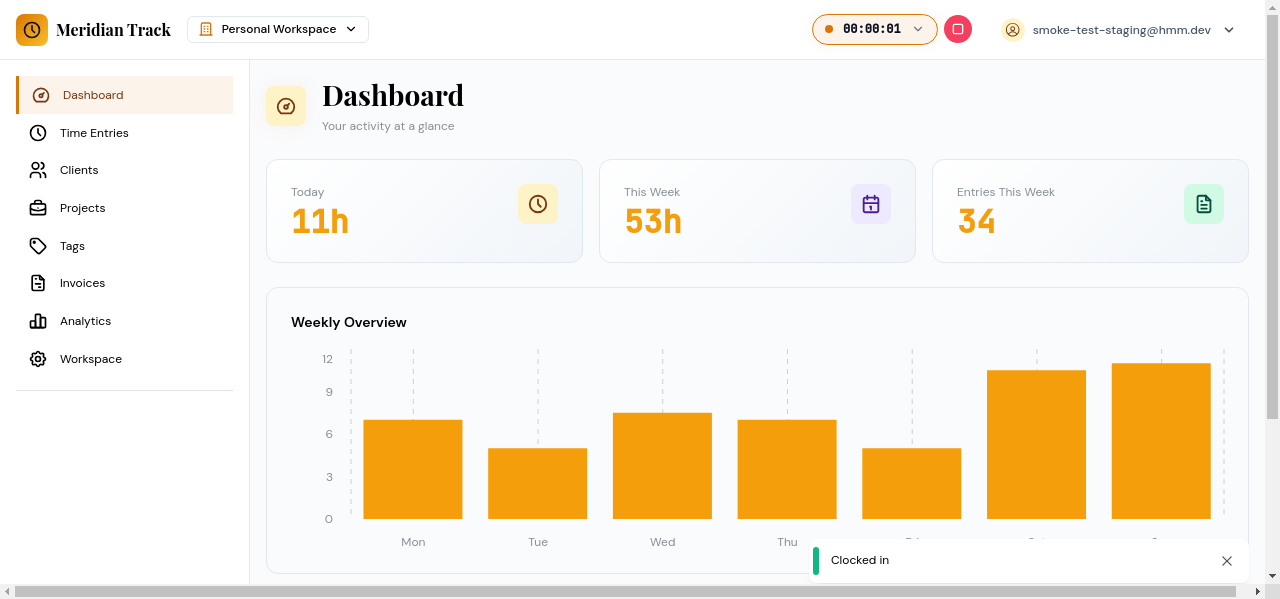
- Do your work. The elapsed time updates in real time.
- When you are finished, click the active timer button to stop tracking.
View Your Entry
Section titled “View Your Entry”After stopping the timer, your completed time entry is saved automatically. Navigate to Time Entries in the sidebar to see it listed with the start time, end time, and duration.
From there you can edit the entry to assign it to a client or project, add tags, or adjust the times.