Workspace Settings
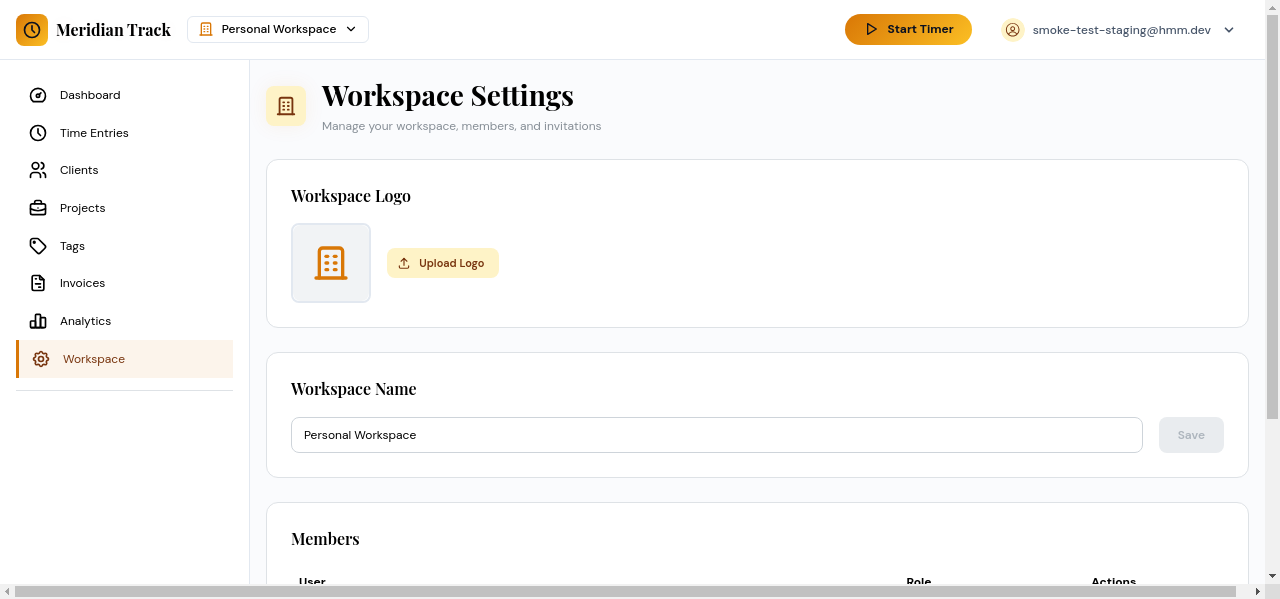
Workspace Settings is where you manage the workspace name, view and control membership, and invite new users. Access it by navigating to Settings > Workspace in the sidebar.
Workspace Name and Details
Section titled “Workspace Name and Details”The workspace name is displayed in the workspace switcher and throughout the app. To rename a workspace:
- Open Settings > Workspace.
- Edit the Workspace Name field.
- Click Save Changes.
Members Tab
Section titled “Members Tab”The Members tab lists everyone who belongs to the workspace along with their assigned role.
Each member has one of three roles:
| Role | Permissions |
|---|---|
| Owner | Full control, including workspace deletion and ownership transfer. |
| Admin | Manage members, invitations, and workspace settings. Cannot delete the workspace. |
| Member | Track time, manage their own entries, and view shared projects and clients. |
Owners and admins can change a member’s role from this tab. The workspace must always have at least one owner.
Invitations Tab
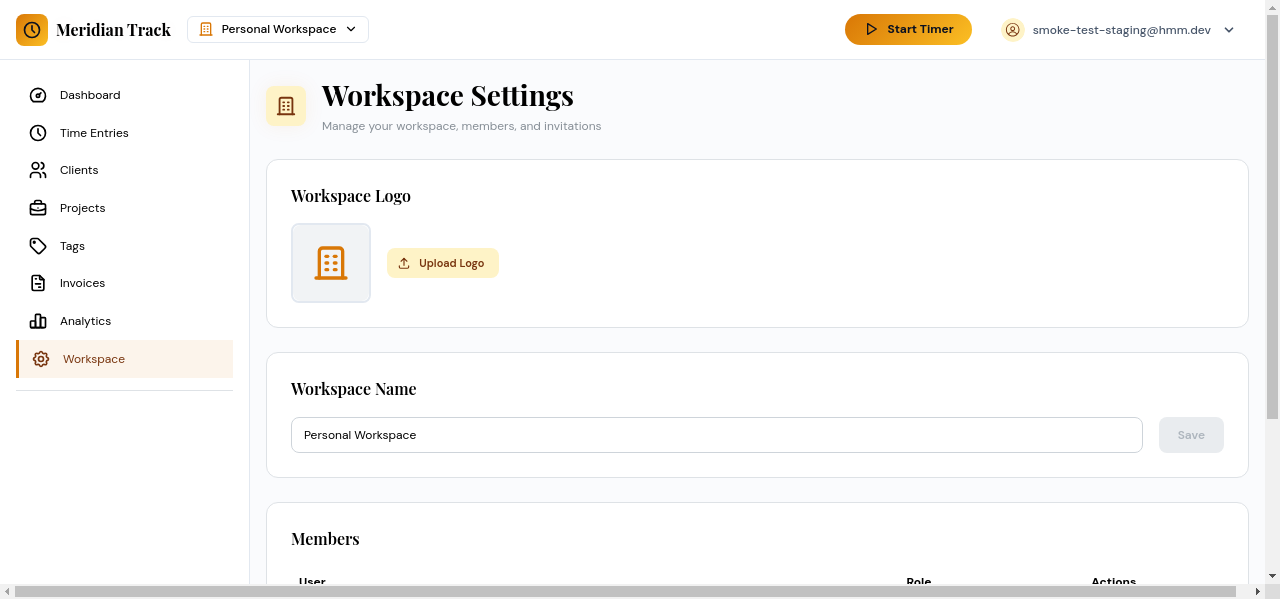
Section titled “Invitations Tab”The Invitations tab lets you invite new users by email and manage pending invitations.
Sending an Invitation
Section titled “Sending an Invitation”- Click Invite Member.
- Enter the recipient’s email address.
- Select a role for the new member (admin or member).
- Click Send Invitation.
The recipient receives an email with a link to join the workspace. If they do not yet have a Meridian Track account, they will be prompted to sign up first.
Pending Invitations
Section titled “Pending Invitations”Outstanding invitations appear in a list showing the email address, assigned role, and when the invitation was sent. You can cancel a pending invitation at any time by clicking the delete action next to it. Invitations expire automatically if not accepted within the validity period.